
Tasks
A task is one unit of work: a prompt, an agent, a project, a lifecycle, a transcript and its output. Tasks are designed to survive restarts and to move between agents.
The task list
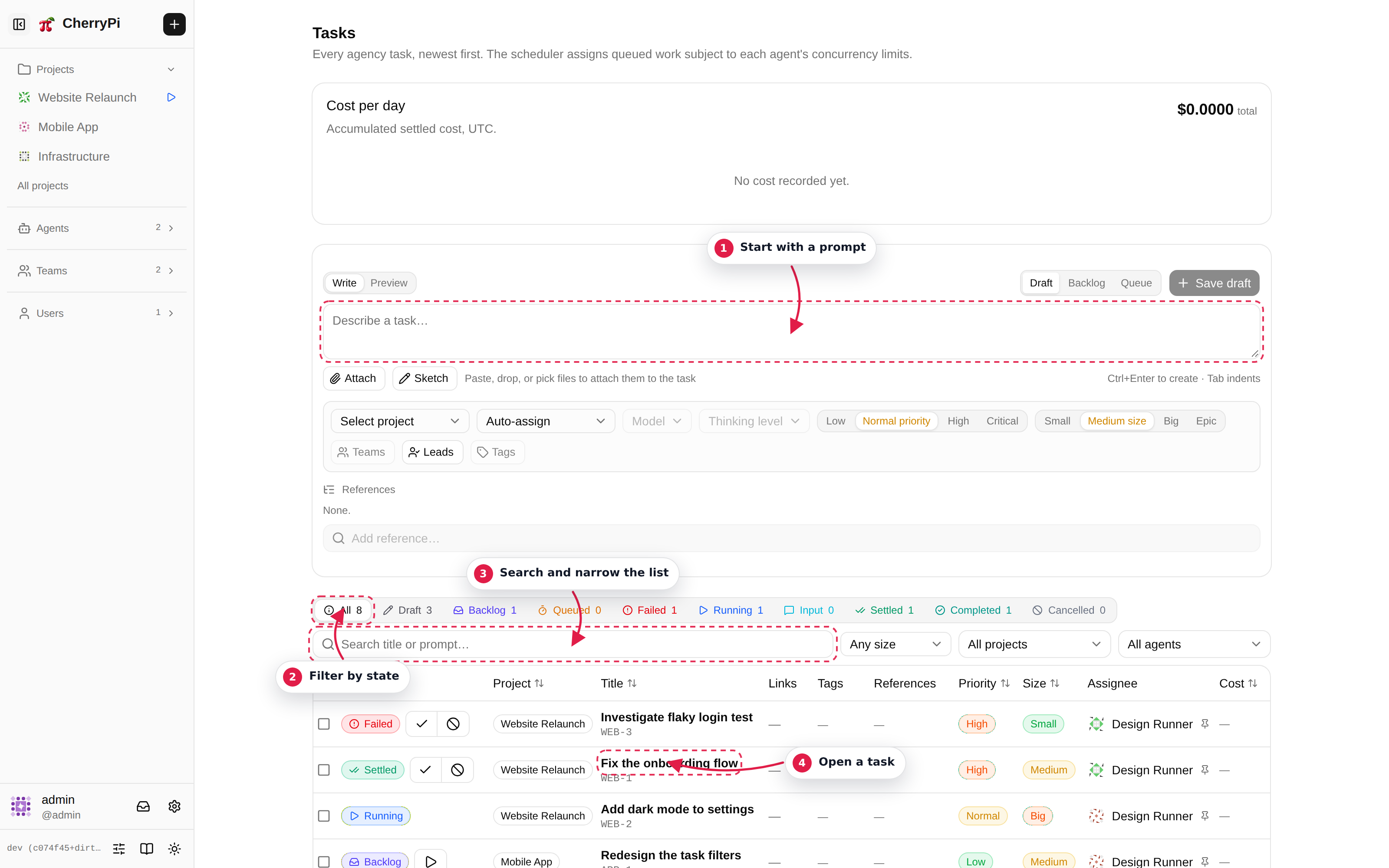
The list shows every task you can see. Use the filters to narrow by project, agent, state, tag or assignee. The status chip on each row is the task's lifecycle state.
Create a task with New task in the header or + next to the agency name. The composer asks for:
- Project — where the task belongs and who can see it.
- Agent — a specific agent, or Auto-assign to let the scheduler choose.
- Title and prompt — what should be done. Attach files with the paperclip or by drag and drop.
- Tags, priority and size — optional metadata used by filters and the scheduler.
The task starts in draft or queued depending on how you create it. A draft can still be edited; a queued task waits for a free slot on an eligible agent.
Task states
| State | Meaning |
|---|---|
draft | Created but not submitted. The prompt is still editable. |
queued | Waiting for the scheduler and a free slot. |
running | Pi is working. |
input | Pi asked a question and waits for an answer. |
settled | The run finished; the task can be followed up. |
completed | Finished and explicitly completed by a person. |
failed | The run failed; the error is shown above the console. |
cancelled | Stopped and not expected to continue. |
The task detail page
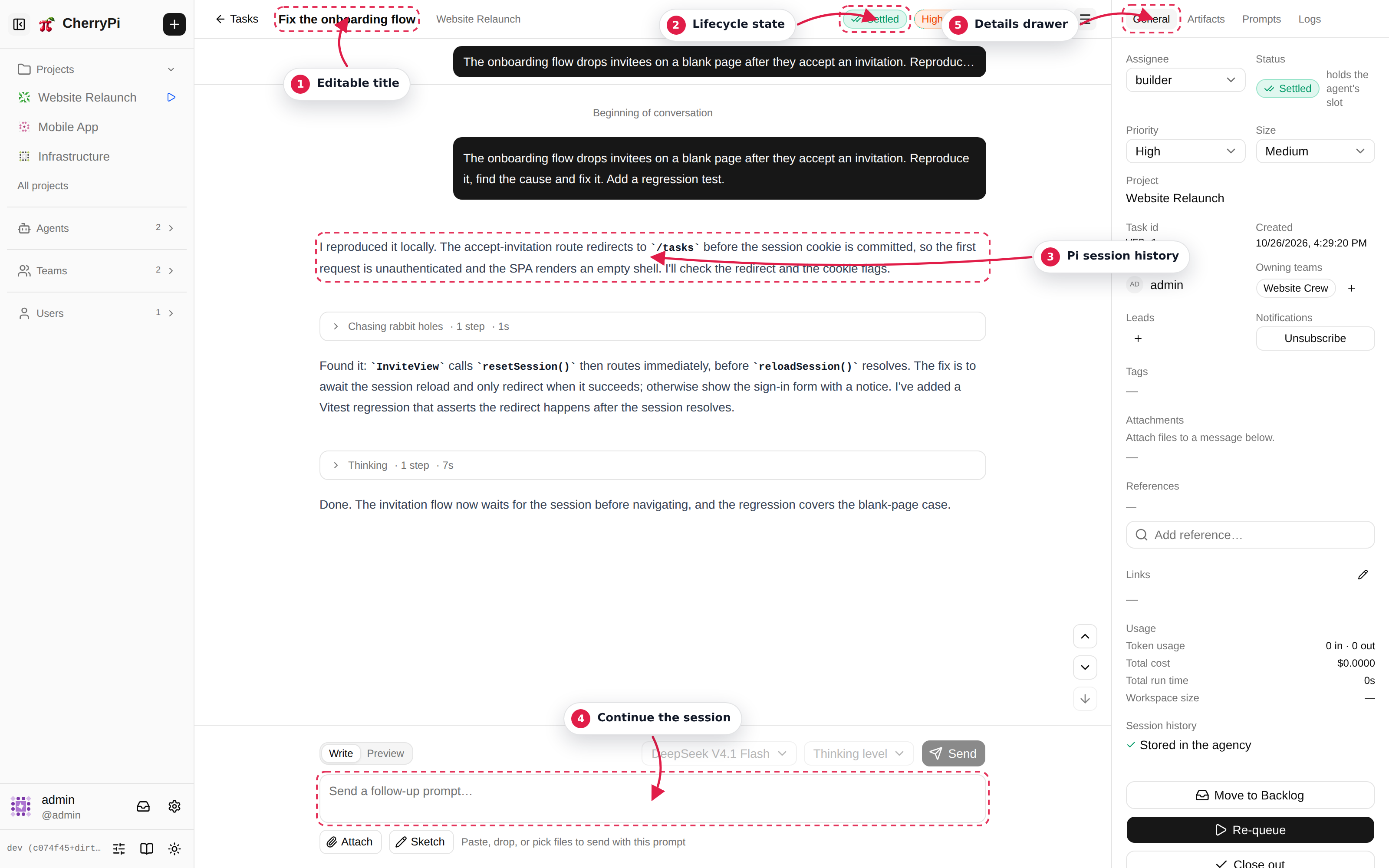
The page has three regions:
- Header — editable title, project, state, priority and size. The menu on the right opens the details drawer.
- Console — the live Pi transcript. Tool calls are collapsible, questions appear inline, and the follow-up composer stays at the bottom.
- Details drawer — assignee, tags, teams, leads, prompt versions, links and usage.
Prompting
Before the first run, the prompt editor edits the task's original prompt. After the task starts, the composer sends follow-up messages to the same Pi session. Use Write and Preview to check Markdown before sending.
Ctrl+Enter (Cmd+Enter on macOS) sends a message. Drag files into the console or use the paperclip to attach them. Files are uploaded to the agency and materialized into the agent's workspace before Pi sees them.
Answering questions
When Pi asks a question the task moves to input. The questionnaire appears in the console; answer it and the task continues. If the answer fails to send, the dialog keeps your input so you can retry without losing it.
Queued steering
While a run is active you can send steering messages. They are queued and injected between tool blocks instead of interrupting the current step. The console shows the queue above the composer, where you can clear it.
Stopping and resuming
- Cancel stops the run and moves the task to
cancelled. - Re-queue on a failed task starts a new run.
- Follow up on a settled or completed task sends a new message to the same session.
A task that is reassigned to another agent is reconstructed from the agency's session history. If the old agent's workspace was deleted, the task shows Session cleaned up; a follow-up starts a fresh Pi session from the stored conversation.
The details drawer
The drawer exposes the operational controls:
| Tab | Contents |
|---|---|
| Overview | Assignee, project, tags, priority, size, teams, leads. |
| Prompt | The prompt versions and the composed system prompt. |
| Links | Links the agent published with the setTaskUrls tool. |
| Artifacts | Files published as the task's output. |
| Attachments | Files attached to the task and its messages. |
| Usage | Token and cost accounting for the task. |
| History | The stored Pi session entries. |
Only project owners and members may prompt. Viewers can read the transcript and artifacts.
Task ids
A task id includes the project prefix and a sequence number, for example CHPI-42. The underlying (project, sequence) pair is stable even if the project prefix is renamed.